Setup Guide
Learn how to connect your Google account to ThunderSweep
⚠️ CRITICAL: Check All Permission Boxes
When connecting your Google account to ThunderSweep, you MUST check all permission boxes for the extension to work properly. Missing any permission will cause scanning or vault features to fail.
Required Permissions
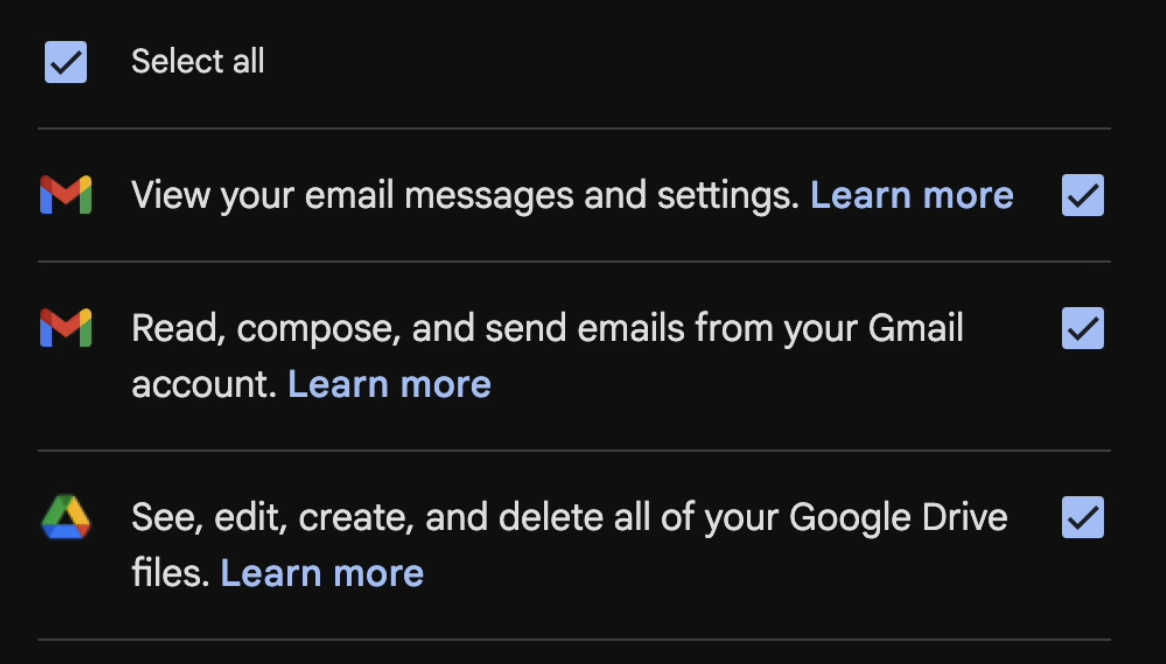
ThunderSweep requires the following permissions across Gmail and Google Drive:
Why Each Permission Is Required
Crucial context: ThunderSweep is an extension installed locally on your Chrome browser; it is not a remote server or a person. When you grant these permissions, you are giving your local browser the ability to run these security tasks on your own computer. No data is ever sent externally. I have no backend servers.
1️⃣ View your email messages and settings
What it does: Allows the local extension on your machine to map your inbox structure.
Why it's needed: Your browser uses this to identify which emails contain attachments so it knows what to scan.
What it DOES NOT do: It does not give me (the developer) or anyone else the ability to read your emails from a remote server.
2️⃣ Read, compose, and send emails from your Gmail account
What it does: Grants your local browser the ability to download attachments into its temporary memory for scanning.
Why it's needed: Without this, the extension cannot actually inspect PDFs or documents for sensitive information before vaulting them.
What it DOES NOT do: It does not send emails on your behalf, nor does it upload your attachments to any cloud servers for processing.
3️⃣ See, edit, create, and delete all of your Google Drive files
What it does: Gives the extension necessary read/write authorization within your private Drive architecture.
Why it's needed: Your browser must be able to scan your existing Drive files, generate its own encrypted versions locally, place those secure files into your new ThunderSweep Vault folder, and delete the exposed originals.
What it DOES NOT do: It does not give me or my company any visibility into your files. ThunderSweep operates completely blindly on our end.
Privacy & Security
Installation Steps
- Install ThunderSweep from the Chrome Web Store
- Click "Connect Gmail Account" in the extension popup
- Select your Google account when prompted
- If you see "Google hasn't verified this app" — click "Advanced", then "Go to ThunderSweep (unsafe)". This is expected: full Google verification is a separate, ongoing process from security certification. ThunderSweep has already passed an independent CASA Tier 2 security assessment covering authentication, encryption, data protection, and 10 other categories.
- CHECK ALL BOXES ✅ ✅ ✅ ✅ on the permissions screen — all four are required
- Click "Continue" to authorize the extension
- Start scanning! 🎉 Your 7-day free trial begins on first scan
Common Issues
❌ "Permission denied" error
Solution: Make sure ALL boxes are checked when connecting your account. Go back and re-authorize with all permissions enabled — both Gmail and Google Drive.
❌ Scan fails or shows "0 attachments"
Solution: Disconnect and reconnect your account in the extension settings, ensuring all permissions are granted during the OAuth flow.
❌ Vault won't create or files won't save
Solution: The Encrypted Vault requires the Google Drive permissions. Disconnect and reconnect your account, making sure the Drive permission boxes are checked.
❌ Extension asks for permissions again
Solution: This is normal after extension updates. Re-grant all permissions to continue using ThunderSweep. Your previous scan results, vault files, and settings are preserved.
Need Help?
📧 Email: [email protected]
🌐 Website: https://thundersweep.com
Last Updated: September 2026